Private browser-based PDF combiner

Merge PDF Online for Free

Merge PDF files online for free in seconds. Combine multiple PDFs into one document directly in your browser — no upload, no account, and no watermark.

Your files stay in your browser
No upload required
No account needed

Common use cases

Built for the everyday PDF jobs people need to finish fast.

  • Client work

    Combine reports into one PDF before sending them to clients or teammates.

  • Bookkeeping

    Merge invoices and receipts into a single file for cleaner accounting records.

  • Scanned docs

    Join scanned documents so multi-page records stay together in the right order.

  • School

    Merge assignments, lecture notes, and supporting pages into one submission.

  • Contracts

    Combine contracts, appendices, and signature pages into one complete document.

  • Archive

    Join multiple PDFs before printing, storing, or archiving the final version.

1 Upload Files
2 Arrange & Options
3 Download

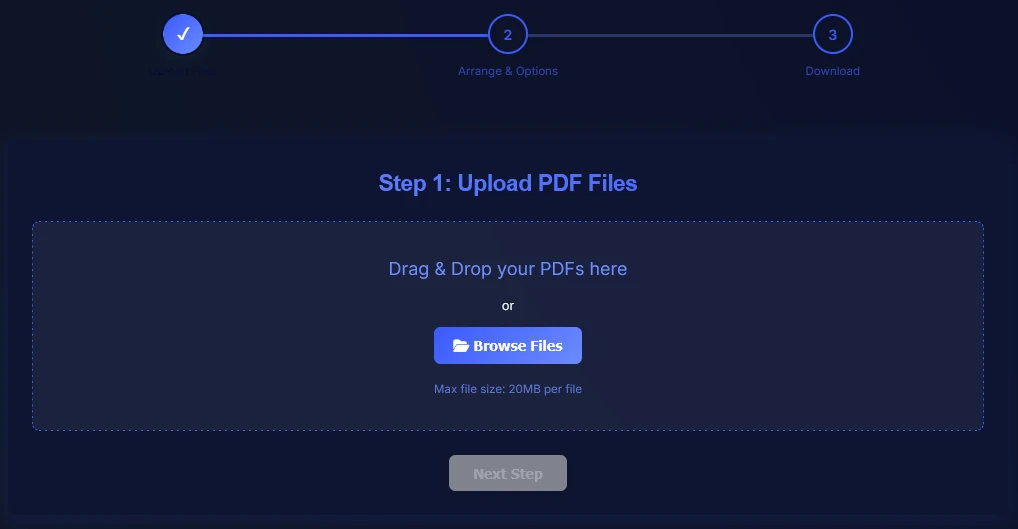
Step 1: Upload PDF Files

Drag & Drop your PDFs here

or

Max file size: 20MB per file

Why use this Merge PDF tool?

Combine PDF files quickly into one organized document without extra steps.

Use this tool when you need to merge PDF files for work, school, admin tasks, or sharing. It helps you combine reports, invoices, scanned pages, contracts, and supporting documents into one clean file.

Because the merge runs in your browser, you can join multiple PDFs without creating an account or waiting for server uploads. It is a simple way to keep your workflow fast and private.

How to merge PDF files online (step-by-step)

Follow these steps to merge PDF online, arrange your files, and download one combined document.

1

Add the PDF files you want to combine using drag-and-drop or the file browser. This is the fastest way to start when you need to merge multiple PDFs into one file.

Add PDF files to merge online
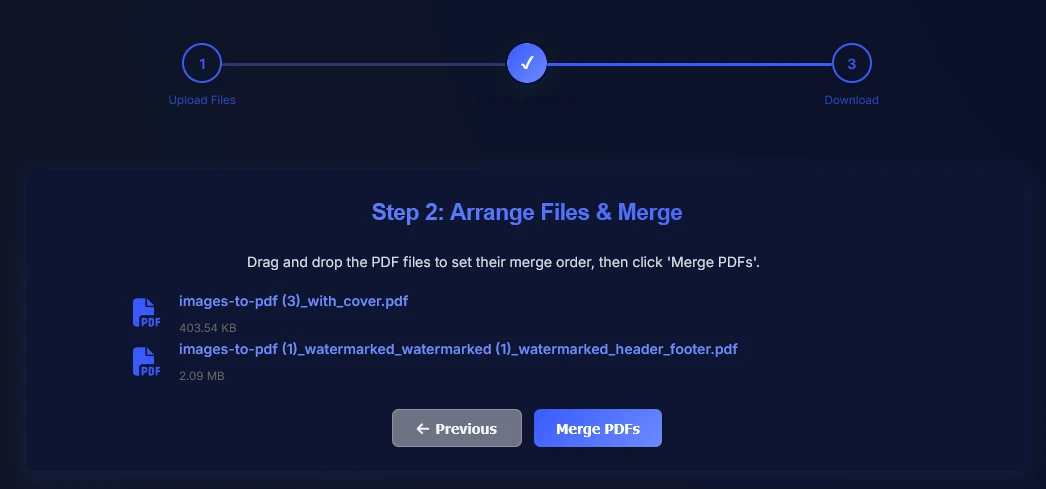
2

Reorder the files before you join PDF pages together. The final merged document follows the exact order you set here, so reports, invoices, scanned pages, or contracts stay organized.

Arrange PDF files in order before merging
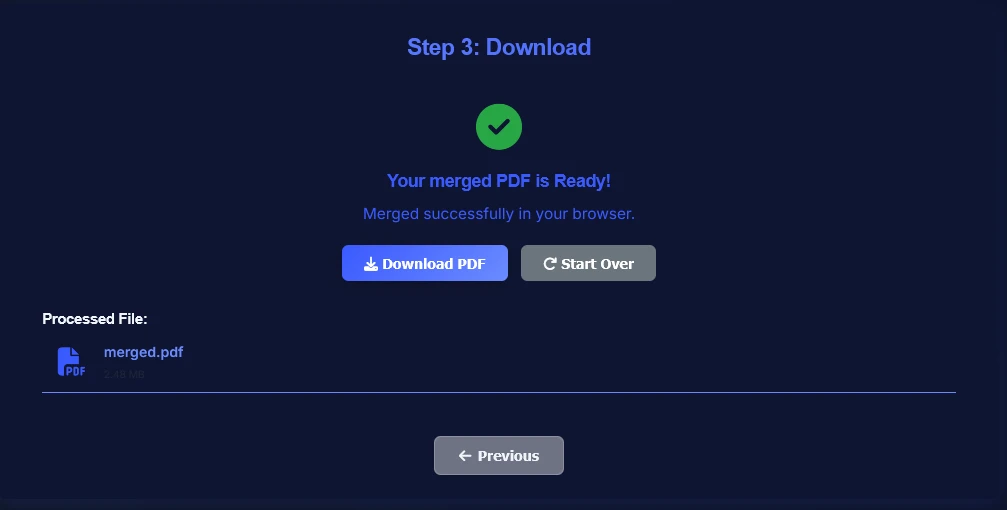
3

Click the merge button, let the tool combine PDF files in your browser, and download the final document. Your merged PDF keeps its original layout and no watermark is added.

Download merged PDF file without watermark

When should you merge PDFs?

Merge PDFs when one task is easier to share, review, print, or store as a single document.

Merge PDF files when you want to send one polished document instead of several attachments. It is useful for combining monthly reports, packing related invoices into one file, joining scanned pages from paper records, and turning separate contract sections into one final PDF.

It is also useful for school and admin work. If you need to submit an assignment with supporting pages, organize client paperwork, or archive related documents together, a merged PDF is easier to review, save, print, and share.

Merge PDF FAQ

Answers to common questions about how to merge PDF files online for free.

Is this Merge PDF tool free to use?
Yes. You can merge PDF online for free with NasajTools. There is no account requirement, no watermark, and no extra charge to combine PDF files into one document.
Is it safe to merge PDF files here?
Yes. This merge PDF tool works in your browser, so your source files stay on your device during processing. That makes it a practical choice for private reports, contracts, scanned files, and other everyday documents.
Are my files uploaded to a server?
No. Your files stay in your browser while the merge runs. You do not need to upload PDFs to a remote server just to join PDF files into one document.
Does this Merge PDF tool work offline?
You still need to load the page in a browser, but the actual merge process runs client-side. In practice, that means the tool behaves like a browser-based merge PDF app instead of a server-heavy upload workflow.
What are the file size limits?
The current interface allows up to 20MB per PDF file. If you need to work with larger documents, compress the PDFs first or merge them in smaller batches.
Can I reorder PDFs before merging them?
Yes. You can drag files into the order you want before you merge multiple PDFs. The final document follows that same order, which is useful when you need to combine PDF files for reports, assignments, or contracts.
Can I merge more than two PDF files at once?
Yes. You can combine multiple PDF files in one session, then arrange them in the order you want before downloading the merged document.
Will the quality change after I join PDF files?
No. Joining PDFs does not compress or rewrite the pages for quality reduction. Your merged PDF keeps the original layout, text, and page quality from the source files.
Does it work on mobile devices?
Yes. You can use this merge PDF online tool on modern phones and tablets as well as desktop browsers. For large files or many PDFs, desktop devices usually provide the smoothest experience.
Can I merge PDFs with different page sizes or orientations?
Yes. When you combine PDF files, each page keeps its original size and orientation. This is helpful when you need to join scanned documents, invoices, forms, or mixed report exports.
Do I need an account to use it?
No. You can merge PDF files without signing up. Open the page, add your PDFs, reorder them, and download the combined file when it is ready.

Related tools for your PDF workflow

Use these next-step tools after you merge PDF files to finish, organize, or review the final document.